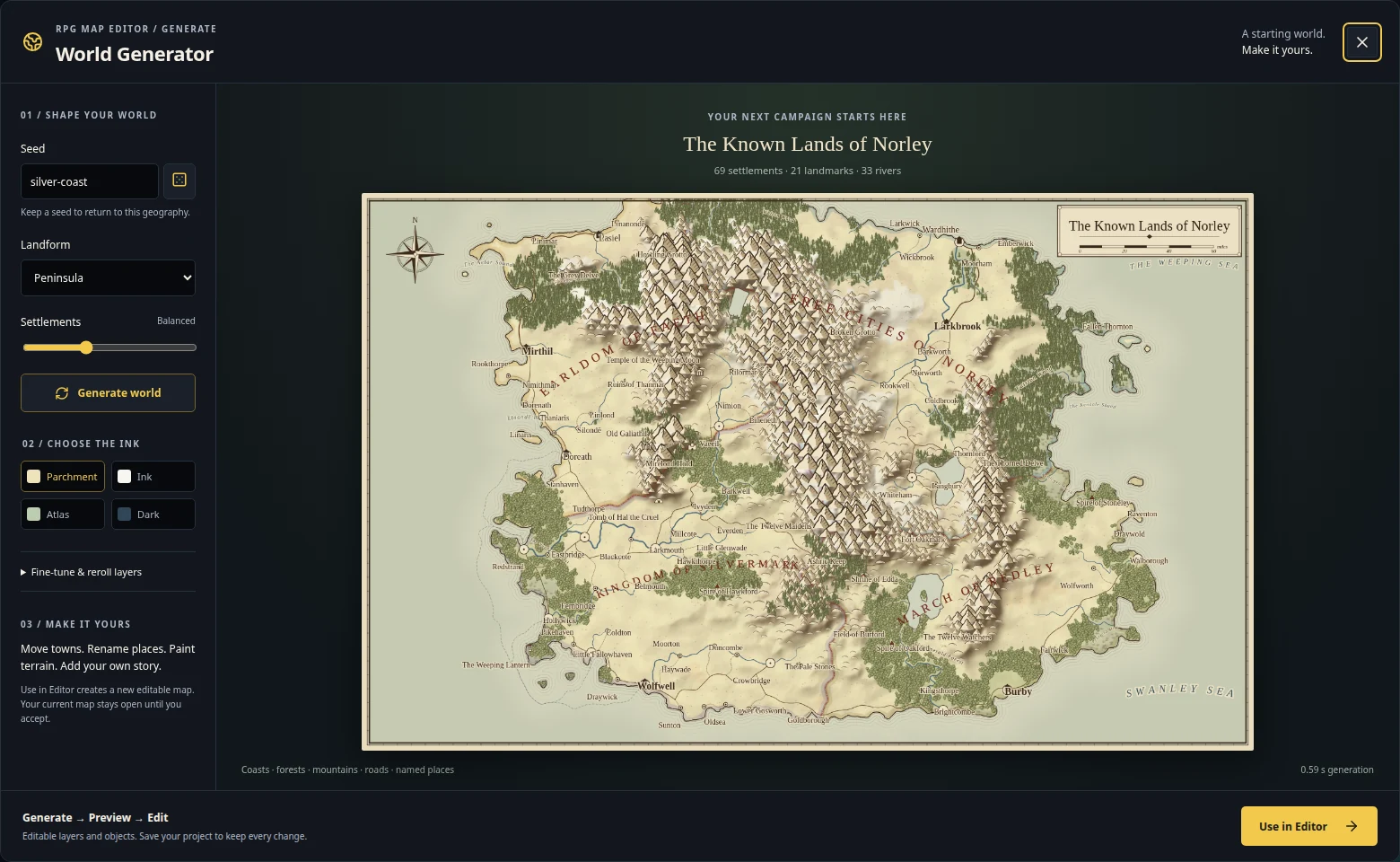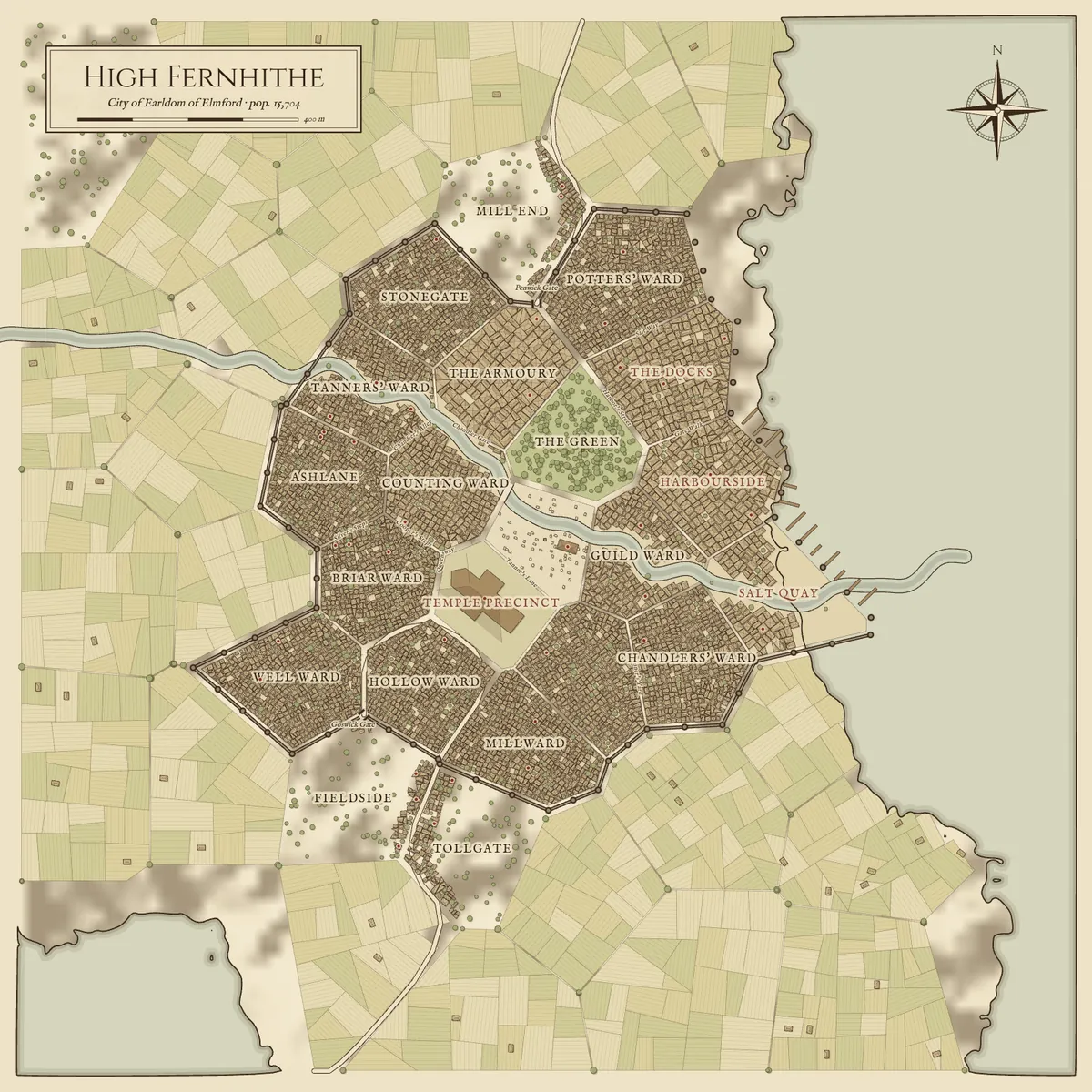
A good fantasy city map answers the questions your players will actually ask: where is the inn, how do we get to the temple, which gate leads to the road north, and what is down by the docks? It does not need every roof drawn by hand. It needs believable structure — walls, wards, main streets and landmarks — and enough detail that you can improvise.
This guide walks through making one in four steps: decide what the city is for, generate a layout from a seed, read the result for story hooks, and then edit and export it. Every image here is real output from the free fantasy city generator.
1. Decide what the city is for
Before you draw or generate anything, settle two things.
Size. A village is a crossroads with a few dozen buildings. A market town has a few thousand buildings and may or may not have walls. A city is walled, with ten to twenty districts. A capital is the biggest place in its realm and often has a citadel. Pick the smallest size that fits the story: a heist needs alleys and guild halls; a quick resupply stop needs an inn and a smithy.
Setting. Water shapes a city more than anything else. A coastal city gets a harbour, piers and a waterfront district. A river crossing gets bridges and wards on both banks. An inland town grows along its roads instead.
Those are exactly the choices the city generator asks for, because they change everything downstream.
2. Generate a layout from a seed
Open the fantasy city generator, pick a size, a setting and an ink, and select Generate city. Generation takes a second or two and runs in your browser; you do not need an account.
The seed is the important part. The same seed and settings always produce the same city, so write it in your notes next to the city's name. If the first result is not right, try another seed rather than fighting a layout you dislike — it is faster to look at five cities than to fix one.
Some things to look for while you browse seeds:
- A clear centre. A market or temple precinct that roads converge on makes navigation easy to describe at the table.
- Readable gates. Each gate is where a road from the wider region enters. Those roads are your travel routes.
- Water you can use. A river that splits the old town, or docks on the far side of the walls, gives you natural boundaries between factions.
The generator works from a whole region first, so the coast, the rivers and the approach roads are not decoration — they come from the surrounding geography. If you want that region too, the fantasy map generator draws the kingdom around it.
3. Read the map for adventure hooks
Below the map, the generator lists the city's districts and notable places. For High Fernhithe those include:
- The Grand Market — “the beating heart of the city, loud with haggling and gossip”, home to the Market Hall run by Maud Redmane.
- Stonegate — “narrow houses lean over crooked lanes.”
- Counting Ward — guild houses and lantern-lit streets.
- The Black Dragon, an inn kept by Fenwick Dunmore, and the Hall of Records under Corra Thorne.
The city summary adds that High Fernhithe is “known for smuggled brandy” and that “a wandering knight has challenged every champion in town.” That is already a session: the smugglers need somewhere to land their cargo (the harbour or the river?), the Hall of Records knows who owns the warehouses, and the knight drinks at the Black Dragon.
Treat these names as suggestions. Keep what sparks an idea and rename what does not.
4. Edit it as a real map
A generated image is a good start, but cities change during a campaign: a district burns, a new temple goes up, the players buy a warehouse. Select Edit in RPG Map Editor on the generator page. The editor's City Generator opens with your seed already set; choose Use in Editor and the city becomes an ordinary project.
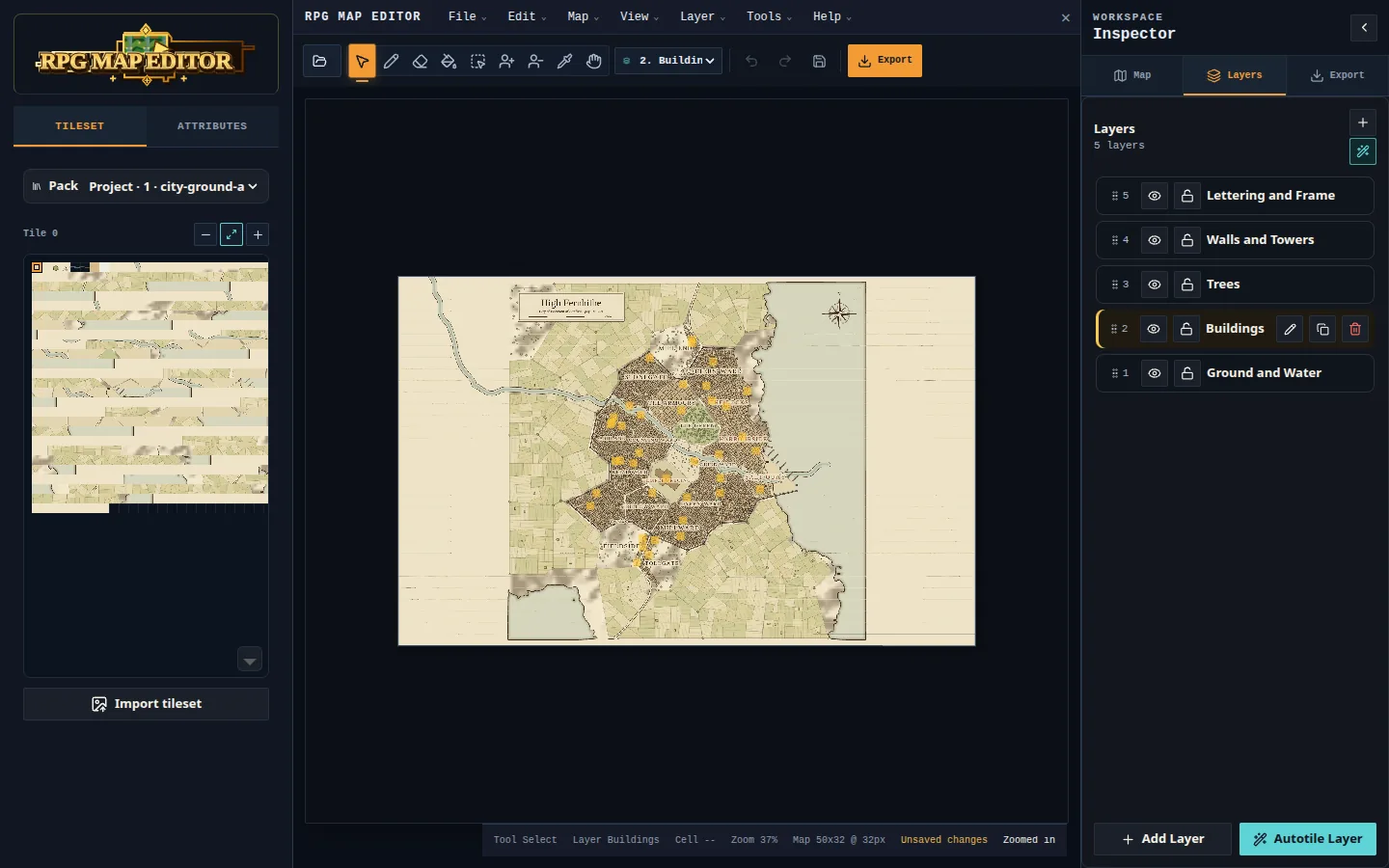
It arrives as separate layers, so edits stay tidy:
- Ground and Water — land, fields, coast, rivers, streets and bridges.
- Buildings — every roof. Erase a block to make a ruin or an open square.
- Trees — parks, orchards and woods, easy to hide for a cleaner print.
- Walls and Towers — remove a wall section after a siege, or keep the wall locked while you paint.
- Lettering and Frame — district names, title cartouche, compass and scale.
Notable buildings become objects with editable Name and Notes fields. Rename the inn, add “owes the smugglers 40 gp” to its notes, or place new landmarks of your own. Undo and redo cover everything, and your work is kept as a local draft if the tab closes.
Editing is part of the paid Online and Offline editions. If you need to sign in first, the generator keeps your seed on your device so the editor can pick it up afterwards.
5. Export for the table or your game
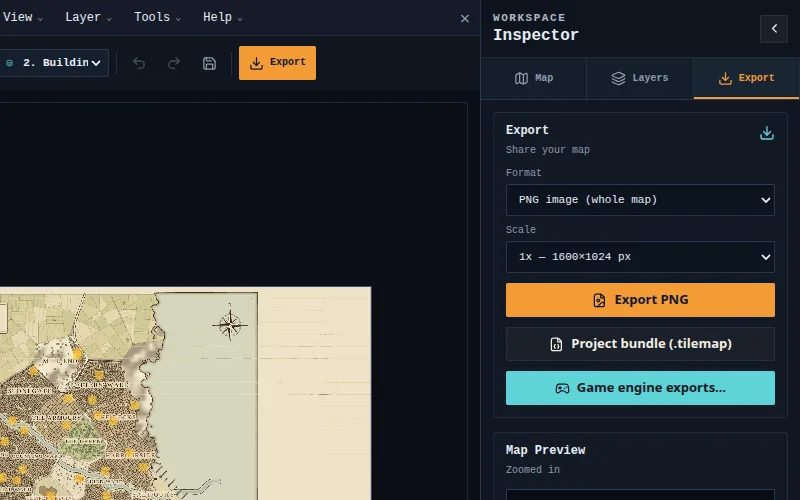
How you export depends on how you will use the map:
- Player handout or VTT overview: export a PNG. City maps work as navigation and overview maps; they are not drawn at a 5-foot tactical scale. When a fight breaks out in the Black Dragon, switch to a battle map for that room. The PNG export guide for virtual tabletops covers upload settings.
- Keep it editable: save the project to the cloud (Online Edition) or as a project bundle with every tileset embedded, so next month's fire can be painted onto the same city.
- A game prototype: the editor's experimental engine exports produce a starter bundle — tileset, map data and a loader — for engines such as Godot, Unity and Phaser.
Which ink should you use?
- Parchment reads as an in-world document — good for handouts.
- Ink is black on white and prints cheaply.
- Atlas uses colour for water and parks, which helps on a shared screen.
- Dark suits VTTs and streams with dark themes.
You can switch ink after generating without changing the city.
Other ways to make a city map
If you only need a finished picture of a city, dedicated city generators such as Watabou's Medieval Fantasy City Generator are popular free choices, and illustrated map tools let you paint a city by hand from stamps. The approach in this guide is aimed at a different need: a city you can keep editing as layers and objects alongside the rest of your maps.
Frequently asked questions
Do I need an account to generate a city?
No. Generating cities and downloading PNGs on the fantasy city generator is free and needs no account. Editing in RPG Map Editor is part of the paid editions.
Can I get the same city again later?
Yes. Keep the seed and the size and setting you chose; they reproduce the same city every time. Edits you make in the editor are saved in the project, not in the seed.
Can I use a generated city in a published adventure?
Under RPG Map Editor's Terms of Service you own the maps you create with it, including generated ones. If you add third-party tilesets in the editor, check their licences before selling the result.