The export workflow
Getting a battle map from your editor to a VTT takes three steps:
- Finalize your map — check grid alignment, toggle off the editor grid if your VTT provides one
- Export as PNG — use the export function, not a screenshot
- Import into your VTT — set grid dimensions to match your map
The key is consistency: the same grid cell size in your editor and your VTT means perfect alignment with zero manual adjustment.
General export settings
Before exporting from RPG Map Editor, check these settings:
- Grid overlay: Turn it OFF if your VTT draws its own grid (Roll20, Foundry). Leave it ON for platforms without built-in grids or for printed maps.
- Resolution: Use your project's native resolution. Do not upscale or downscale.
- Format: PNG for quality. The file size depends on map complexity but typically stays under 5 MB for a 25×25 map at 140 px/cell.
Roll20
Roll20 is the most popular VTT. Here is the quick process:
- Export your map as PNG from RPG Map Editor (grid OFF)
- In Roll20, go to your game → Map & Background layer
- Drag the PNG onto the canvas
- Set Page Settings → width and height to match your grid (e.g., 25 × 25)
- Align the image to fill the page
Important: Roll20 has a 10 MB upload limit for free accounts. Keep maps under 4000 × 4000 px for snappy loading.
For the complete walkthrough with screenshots, see our dedicated Roll20 export guide.
Foundry VTT
Foundry gives you more control over scene configuration:
- Export your map as PNG from RPG Map Editor (grid OFF)
- Upload the PNG to your Foundry data directory or via the file picker
- Create a new Scene → set Background Image to your PNG
- Set Grid Size to match your pixels-per-cell (e.g., 140)
- Foundry auto-calculates the grid dimensions from image size ÷ grid size
Tip: Foundry handles larger files better than Roll20. You can safely go up to 5000 × 5000 px for high-detail scenes.
For the complete walkthrough, see our Foundry VTT export guide.
Owlbear Rodeo
Owlbear Rodeo is a lightweight VTT that's great for quick sessions:
- Export your map as PNG (grid OFF recommended)
- In Owlbear, click the map layer → upload image
- Use the grid alignment tool to stretch-fit the grid over your image
- Set columns and rows to match your map dimensions
Owlbear is more forgiving about alignment since its grid tool is flexible, but starting with correct dimensions still saves time.
Fantasy Grounds
Fantasy Grounds handles maps differently — it uses image pointers rather than direct uploads for some content:
- Export your map as PNG or JPEG
- Place the file in your campaign's
imagesfolder - Create a new Map entry in the Image/Map section
- Set the grid via the Grid tool — snap lines to your map's grid
General tips for all VTTs
- Always export at native resolution. Scaling introduces blurriness.
- Match your grid numbers exactly. If your map is 25 cells wide at 140 px/cell, tell your VTT it's 25 cells wide.
- Toggle off the editor grid. Double-grid (editor grid + VTT grid) looks terrible and confuses players.
- Test before the session. Drop a token and verify it snaps correctly to the grid.
- Name your files clearly.
forest-ambush-25x20.pngis better thanexport-final-v3.png.
File size optimization
If your map exceeds your VTT's upload limit:
- Reduce pixels-per-cell from 140 to 100 (smaller image, acceptable quality)
- Reduce map dimensions if the encounter doesn't need all that space
- Use JPEG instead of PNG if the map has complex textures (but watch for grid-line artifacts)
- Use your VTT's built-in compression or hosted storage if available
What about animated maps?
RPG Map Editor exports static PNG images. If you need animated maps (flowing water, flickering torches), you'll need to add those effects in your VTT using:
- Foundry's built-in weather and lighting effects
- Roll20's Dynamic Lighting layer
- Separate animated overlay tokens
Static maps with good VTT lighting settings often look better than pre-baked animations anyway.
Start exporting
Open RPG Map Editor, build or load a map, and export it to your platform of choice. With consistent grid settings, your maps will align perfectly every time.
Keep a regional map editable
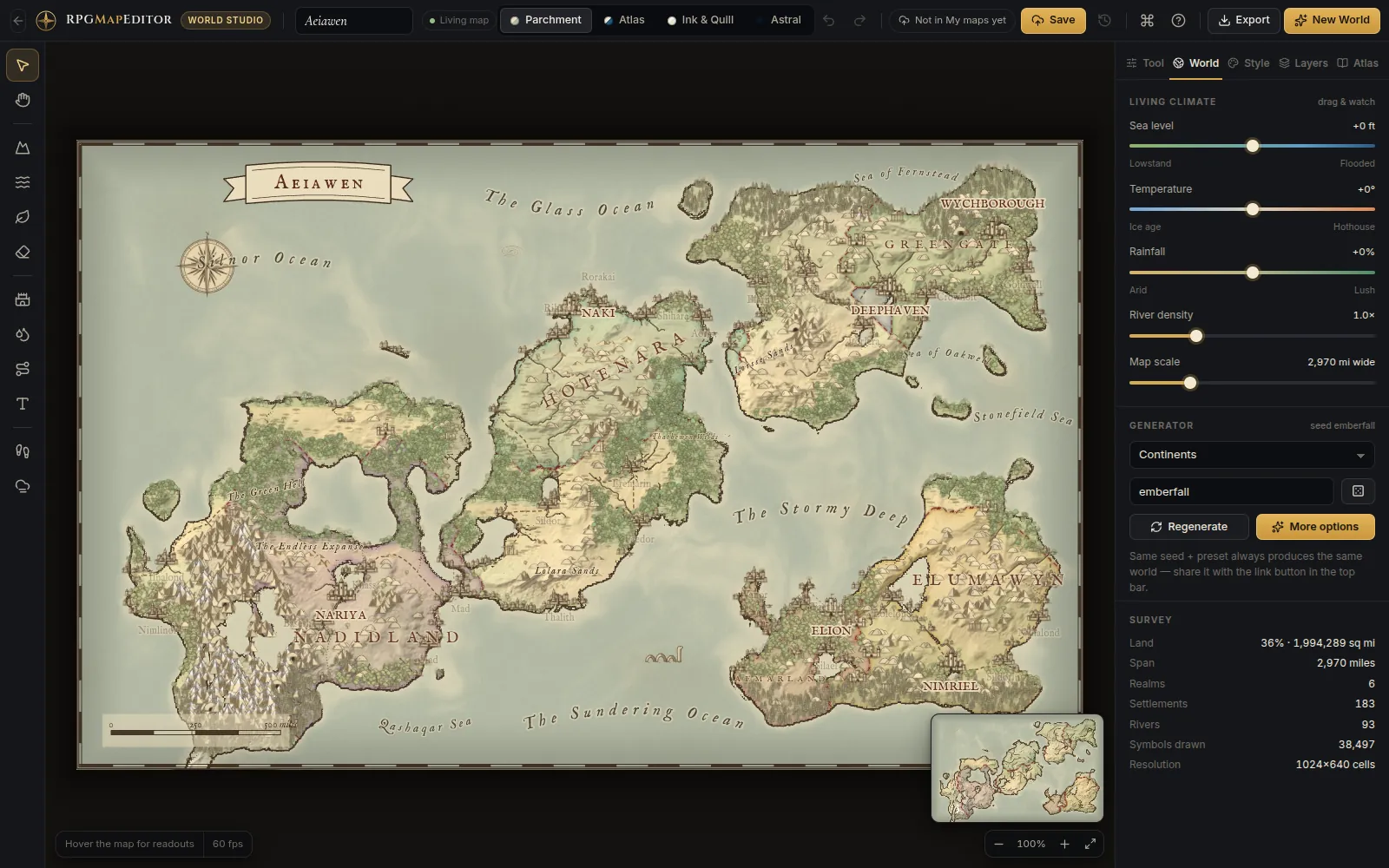
For campaign geography, the optional fantasy world generation workflow creates a regional draft inside the Editor. Keep its project bundle or portable project JSON for later edits, then export PNG when you need an image handout or tabletop background.
Frequently asked questions
What file format should I use for VTT maps?
PNG is the universal standard. All VTTs accept PNG. JPEG works too but introduces compression artifacts that look bad on grid lines and sharp edges.
Do I need to remove the grid before exporting for a VTT?
Usually yes. Most VTTs overlay their own grid for token snapping. Exporting without the grid avoids double-grid artifacts. RPG Map Editor lets you toggle the grid before export.
Can I export maps with transparency?
PNG supports transparency, but most VTTs display maps on a solid background. Transparent regions will show the VTT default color. Export with a filled background for consistent results.