Flat image handoff
PNG export is the current practical output for Roll20, Foundry VTT, print, projection, and campaign notes.
PNG export is the current RPGMapEditor.com handoff for virtual tabletops, print, projection, and campaign notes.
Use the PNG as Roll20 map-layer art or a Foundry VTT scene background, then configure platform-specific grid, walls, doors, lighting, fog, tokens, and automation inside the VTT.
RPGMapEditor.com currently uses PNG export as the practical VTT handoff for Roll20 map-layer art, Foundry scene backgrounds, print, projection, and notes.
Editor access requires an account and a paid plan: the Online subscription or the €14.99 one-time Offline Edition. Compare plans.
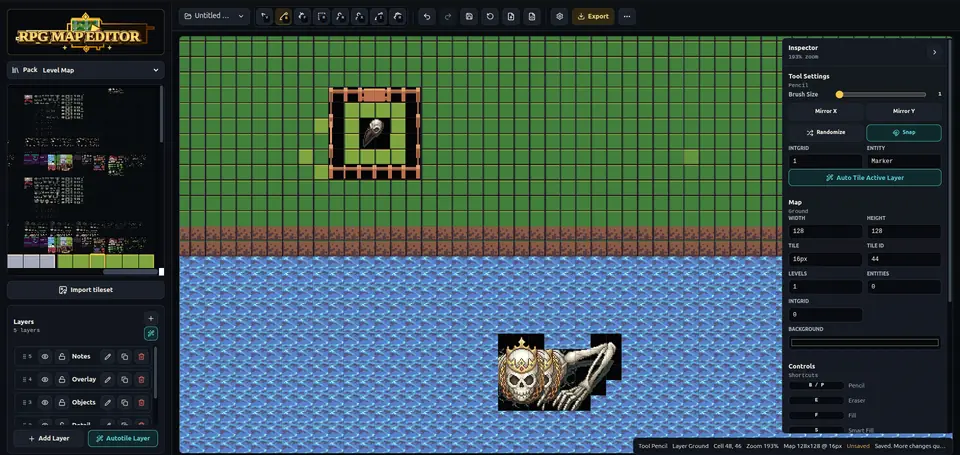
Use RPGMapEditor.com when the result needs to become an actual tabletop map: opened in the editor, edited around play, saved for later, exported as PNG, and reused when the campaign changes direction.
PNG export is the current practical output for Roll20, Foundry VTT, print, projection, and campaign notes.
A clean PNG can become Roll20 map-layer art or a Foundry scene background without claiming direct integration.
Choose square count and pixels per square before export so the target VTT grid can align cleanly.
Keep the editable source map so revisions do not require rebuilding the scene from a flattened image.
Open the editor, make one focused encounter-scale map, save it, then export once to see whether the workflow fits your table.
The same six steps whether you are building a dungeon, a wilderness ambush, or a tavern brawl. The details change by map type; the workflow does not.
Pick columns, rows, and grid scale from the encounter footprint before decorating.
Block walkable ground, walls, roads, rooms, water, caves, or outdoor edges first.
Place cover, furniture, trees, rocks, doors, hazards, and landmarks only where they help play.
Keep movement readable and add labels only when they clarify the session.
Save the editable source map to return later. Editor access requires a paid subscription.
Export a PNG for Roll20, Foundry VTT, print, projection, or campaign notes.
Pick a map size, block out the terrain, and you will have a playable layout in minutes. Save or export it when the tactical read looks right.
Use this table to decide whether the current RPGMapEditor.com workflow matches the map job before investing more prep time.
| Factor | RPGMapEditor.com | Tradeoff |
|---|---|---|
| Map art | Creates visual map art and exports PNG | The VTT runs tokens, sheets, fog, lighting, walls, and automation |
| Grid setup | Helps plan square count and visual grid readability | Roll20 or Foundry handles final grid alignment after image upload |
| Advanced export | Universal VTT, walls, doors, and lighting are not shipped today | Some tools may offer richer packages; verify official support before switching |
RPGMapEditor.com is built for playable encounter maps. If the job below is not yours, a different tool will serve you better.
PNG export for VTT use Save the editable source map first, then export a flat PNG and test it in the real destination.
Export a PNG, import it into your usual table or VTT setup, and check grid readability before a session depends on it.
The questions DMs usually ask before starting a map like this.
PNG is enough for the visual scene background. The VTT still handles tokens, fog, lighting, walls, doors, sheets, and automation.
Yes. Upload the PNG to Roll20 as map art and align the Roll20 grid to the exported dimensions.
Yes. Use the PNG as a Foundry scene background, set grid size and origin, then add walls, doors, lighting, and tokens in Foundry.
No. Treat Universal VTT, walls, doors, and lighting export as planned or not shipped unless the editor exposes those options.
The current VTT handoff is PNG export. Use the exported image as Roll20 map-layer art or a Foundry VTT scene background.
No. Export a PNG from RPGMapEditor.com, then upload and align the image inside Roll20.
No. Add walls, doors, lights, regions, tokens, and automation manually inside Foundry after PNG import.
Yes. Export PNG, create a Foundry scene, set the image as the background, then configure grid size and origin.
Yes. Upload the PNG to the map layer, set the Roll20 page dimensions, and align the Roll20 grid to the image.
Choose square count first, then export at a consistent pixels-per-square value so the VTT grid can match the image.
No. Treat Universal VTT, walls, doors, and lighting export as planned unless the shipped editor exposes those options.
PNG is enough for the visual map background. Tokens, fog, lighting, walls, and automation remain in the VTT.
Yes. Export PNG and print at the size your table needs after checking grid scale and image readability.
Import one exported PNG into your actual VTT, check grid alignment at multiple corners, and verify text and props remain readable.
Open the editor, build the encounter you were planning, save it, and export a PNG when it is ready for your table.