
Foundry scene background
Export a PNG battle map and use it as the scene background in Foundry VTT.
RPGMapEditor.com is a virtual tabletop map maker for creating PNG battle maps that can become Roll20 map-layer art or Foundry VTT scene backgrounds.
The current workflow is PNG export plus manual grid alignment. Walls, doors, lighting, tokens, fog, and automation stay inside the virtual tabletop.
RPGMapEditor.com is a virtual tabletop map maker for creating PNG battle maps that can be uploaded to Roll20 or used as Foundry VTT scene backgrounds.
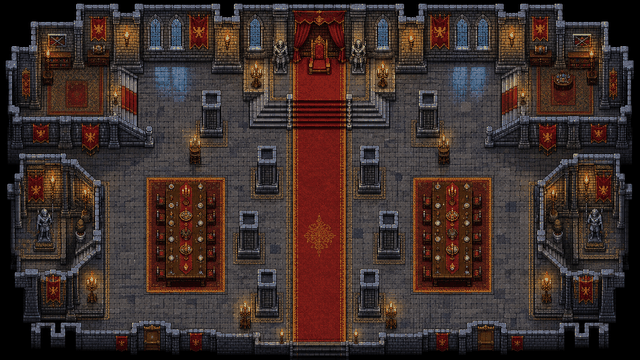
Use RPGMapEditor.com when the result needs to become an actual tabletop map: opened in the editor, edited around play, saved for later, exported as PNG, and reused when the campaign changes direction.
Export a PNG battle map and use it as the scene background in Foundry VTT.
Match the exported pixels-per-square value in Foundry, then adjust grid origin until corners stay aligned.
Add walls, doors, lights, tokens, and regions inside Foundry after import; they are not exported from the map editor today.
Treat Universal VTT or richer scene metadata as planned work unless it appears in the shipped editor and docs.
Open the editor, make a focused encounter-scale map, save the source, then export once to see whether the workflow fits.
This is the same practical sequence for core pages, comparison pages, VTT workflows, and template-style pages. The details change by map type, but the activation path stays measurable.
Pick columns, rows, and grid scale from the encounter footprint before decorating.
Block walkable ground, walls, roads, rooms, water, caves, or outdoor edges first.
Place cover, furniture, trees, rocks, doors, hazards, and landmarks only where they help play.
Keep movement readable and add labels only when they clarify the session.
Save the editable source map to return later. Free accounts can save up to 3 maps.
Export a PNG for Roll20, Foundry VTT, print, projection, or campaign notes.
Move from research to a concrete map. A saved or exported map is the useful validation point.
Use this table to decide whether the current RPGMapEditor.com workflow matches the map job before investing more prep time.
| Factor | RPGMapEditor.com | Tradeoff |
|---|---|---|
| Map art | Creates visual map art and exports PNG | The VTT runs tokens, sheets, fog, lighting, walls, and automation |
| Grid setup | Helps plan square count and visual grid readability | Roll20 or Foundry handles final grid alignment after image upload |
| Advanced export | Universal VTT, walls, doors, and lighting are not shipped today | Some tools may offer richer packages; verify official support before switching |
The goal is trust, not overclaiming. Use RPGMapEditor.com when the current browser and PNG workflow matches the job; choose another workflow when it does not.
VTT PNG workflow Use RPGMapEditor.com for scene art and the VTT for live play features.
Export one PNG, import it into your actual table workflow, and check grid readability before a session depends on it.
Use this next when it matches your map type, export platform, comparison question, or pricing decision.
Use this next when it matches your map type, export platform, comparison question, or pricing decision.
Use this next when it matches your map type, export platform, comparison question, or pricing decision.
Use this next when it matches your map type, export platform, comparison question, or pricing decision.
Use this next when it matches your map type, export platform, comparison question, or pricing decision.
Use this next when it matches your map type, export platform, comparison question, or pricing decision.
These are the natural next questions a DM, VTT user, or comparison shopper usually needs answered before opening the editor.
The current VTT handoff is PNG export. Use the exported image as Roll20 map-layer art or a Foundry VTT scene background.
No. Export a PNG from RPGMapEditor.com, then upload and align the image inside Roll20.
No. Add walls, doors, lights, regions, tokens, and automation manually inside Foundry after PNG import.
Yes. Export PNG, create a Foundry scene, set the image as the background, then configure grid size and origin.
Yes. Upload the PNG to the map layer, set the Roll20 page dimensions, and align the Roll20 grid to the image.
Choose square count first, then export at a consistent pixels-per-square value so the VTT grid can match the image.
No. Treat Universal VTT, walls, doors, and lighting export as planned unless the shipped editor exposes those options.
PNG is enough for the visual map background. Tokens, fog, lighting, walls, and automation remain in the VTT.
Yes. Export PNG and print at the size your table needs after checking grid scale and image readability.
Import one exported PNG into your actual VTT, check grid alignment at multiple corners, and verify text and props remain readable.
Yes. Export the map as an image, upload it to your VTT, and align that VTT’s grid to the exported artwork.
The live workflow focuses on image and project exports. PNG is the primary VTT-ready handoff; JSON-style project data is used for editable map state.
Yes. It is designed for fast browser prep, saved maps, tactical grids, and export files you can bring into online play tools.
No. Export the base map, then configure walls, fog, dynamic lighting, and token settings inside your VTT.
Turn this search into a measurable product action: open the editor, create the map, save it, export PNG, and return when the session changes.